RHCSA Rapid Track
Use Podman to pull container images from a registry and to use them to run containers.
Outcomes
You should be able to run containers in Podman by using the podman run command.
As the student user on the workstation machine, use the lab command to prepare your system for this exercise.
[student@workstation ~]$ lab start containers-creating
Instructions
Use the
registry.lab.example.com/ubi9/ubiimage to create a new container that prints theHello Red Hattext.Log in to the classroom registry. Use
adminas the username, andredhat321as the password.[student@workstation ~]$
podman login registry.lab.example.com --tls-verify=falseUsername:adminPassword:redhat321Login Succeeded!Use the
podman pullcommand to fetch the image from the registry.[student@workstation ~]$
podman pull registry.lab.example.com/ubi9/ubi \ --tls-verify=falseTrying to pull registry.lab.example.com/ubi9/ubi:latest... ...output omitted... Getting image source signatures Copying blob 1153e061da4e done Copying config 8d2a8803cf done Writing manifest to image destination 8d2a8803cfca17a81eb9412e1f33ae1c6fe3797553e9b819899dc03f1657cf12Use the
podman imagescommand to verify that the image is available locally.[student@workstation ~]$
podman imagesREPOSITORY TAG IMAGE ID CREATED SIZE registry.lab.example.com/ubi9/ubi latest 8d2a8803cfca 3 months ago 219 MBIn a command line terminal, use
podman runto create a new container. Provide anechocommand to be executed inside the container.[student@workstation ~]$
podman run --rm registry.lab.example.com/ubi9/ubi \ echo 'Hello Red Hat'Hello Red HatVerify that the container is not running after the execution finishes.
[student@workstation ~]$
podman psCONTAINER ID IMAGE COMMAND CREATED STATUS PORTS NAMES
Explore setting and printing environment variables by using the
registry.lab.example.com/ubi9/ubicontainer image.Use the
-eoption in thepodman runcommand to set environment variables. Use theprintenvcommand that is packaged in the container image to print the values of the environment variables.[student@workstation ~]$
podman run --rm -e GREET=Hello -e NAME='Red Hat' \ registry.lab.example.com/ubi9/ubi printenv GREET NAMEHello Red HatVerify that the container is not running after the execution finishes.
[student@workstation ~]$
podman psCONTAINER ID IMAGE COMMAND CREATED STATUS PORTS NAMES
Use the
registry.lab.example.com/rhel9/httpd-24image to run a new container that creates an Apache HTTP server.Use the
podman pullcommand to fetch the image from the registry.[student@workstation ~]$
podman pull registry.lab.example.com/rhel9/httpd-24 \ --tls-verify=falseTrying to pull registry.lab.example.com/rhel9/httpd-24:latest... ...output omitted... Copying blob 358ca3c2eaff done Copying blob e584cd196457 done Copying config a42923e055 done Writing manifest to image destination a42923e05589d2d10c25e87736bc3b9537c38c2a6a87f37e9a71e288b01738a6Use the
podman runcommand to start thehttpdcontainer. Use the-poption in thepodman runcommand to redirect traffic from port8080on your machine to port8080inside the container.[student@workstation ~]$
podman run --rm -p 8080:8080 \ registry.lab.example.com/rhel9/httpd-24=> sourcing 10-set-mpm.sh ... => sourcing 20-copy-config.sh ... => sourcing 40-ssl-certs.sh ... ---> Generating SSL key pair for httpd... ...output omitted... [Thu Jun 06 00:02:06.591391 2024] [mpm_event:notice] [pid 1:tid 1] AH00489: Apache/2.4.57 (Red Hat Enterprise Linux) OpenSSL/3.0.7 configured -- resuming normal operations [Thu Jun 06 00:02:06.591430 2024] [core:notice] [pid 1:tid 1] AH00094: Command line: 'httpd -D FOREGROUND'The container keeps running and the logs are displayed in your terminal.
In a web browser, navigate to
http://localhost:8080. Verify that the HTTP server is running at the 8080 port.Go back to your command-line terminal. Press
Ctrl+Cto stop the container....output omitted...
^C[Thu Jun 06 00:04:13.467695 2024] [mpm_event:notice] [pid 1:tid 1] AH00491: caught SIGTERM, shutting downCreate the container again by adding the
-doption. The container runs in the background.[student@workstation ~]$
podman run --rm -d \ -p 8080:8080 registry.lab.example.com/rhel9/httpd-2408ac7ce948feb65f76f82305d556843a898b60200f5b4f37d1ecb8ea381199ffVerify that the container is running in the background.
[student@workstation ~]$
podman psCONTAINER ID IMAGE COMMAND CREATED STATUS PORTS NAMES 08ac7ce948fe registry.lab.example.com/rhel9/httpd-24:latest /usr/bin/run-http... 21 seconds ago Up 22 seconds 0.0.0.0:8080->8080/tcp charming_tharp
Use Podman Desktop to list images and containers.
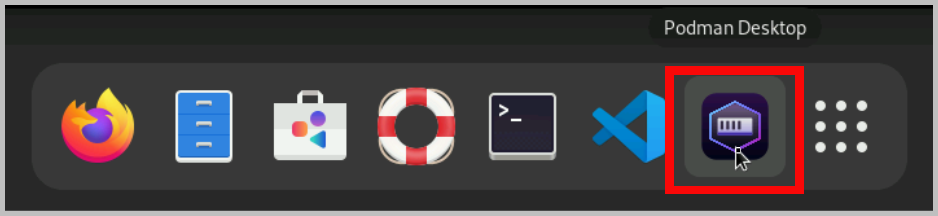
Open Podman Desktop. Click at the upper-left corner of the top bar, and then click the icon.

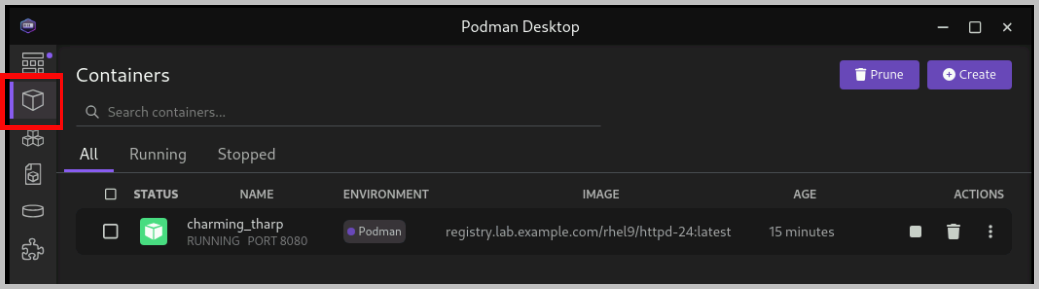
Click in the Podman Desktop navigation panel. The list includes the containers that you created in the exercise. Verify that the Apache HTTP container is running.

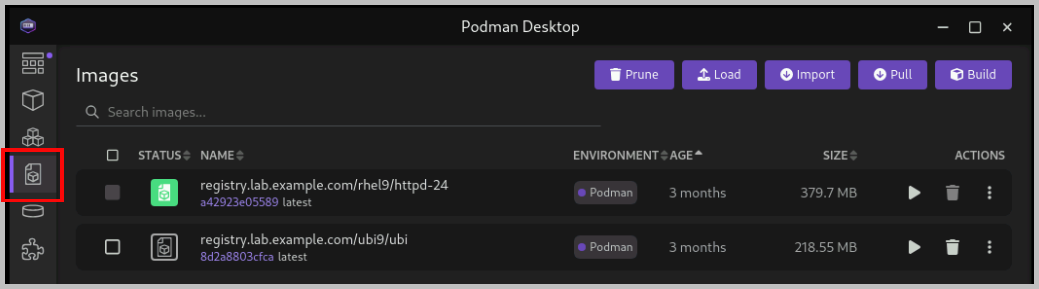
Click . The list of local images displays the
ubi9/ubiand therhel9/httpd-24images.
Use Podman Desktop to start another Apache HTTP container that maps its port to port 8090 in the workstation.
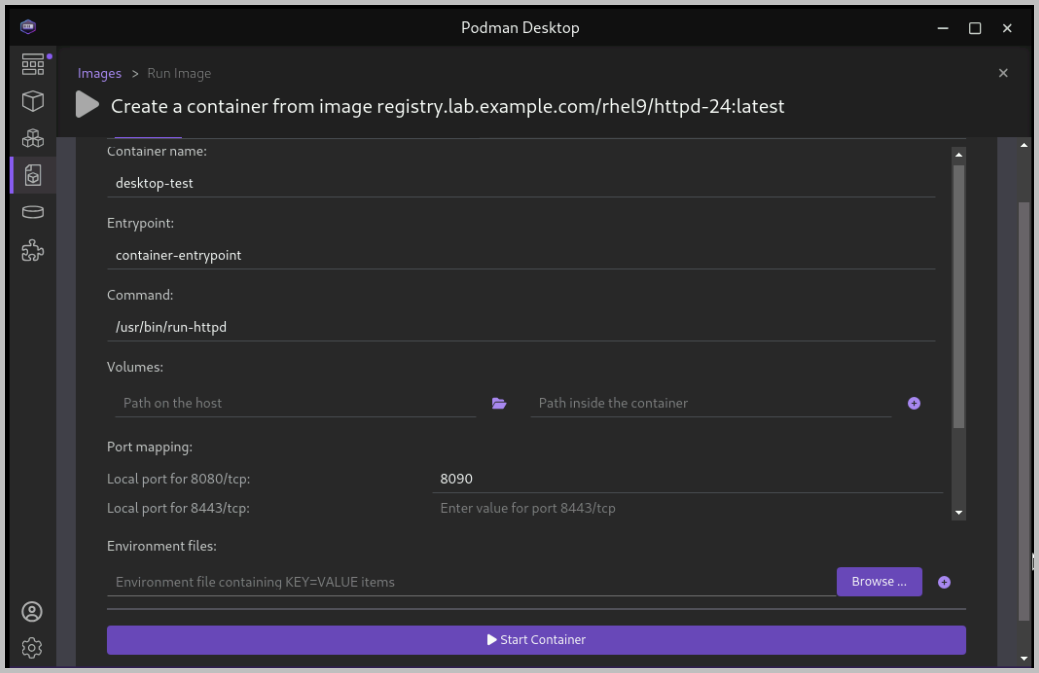
Click the arrow () of the
rhel9/httpd-24image to run a new container based on this image.In the container creation form, enter the following values:
Container name:
desktop-testLocal port for 8080/tcp:
8090Local port for 8443/tcp:
8443
Click .
Note
You can safely ignore the SELinux security warning that displays at the top of the desktop.
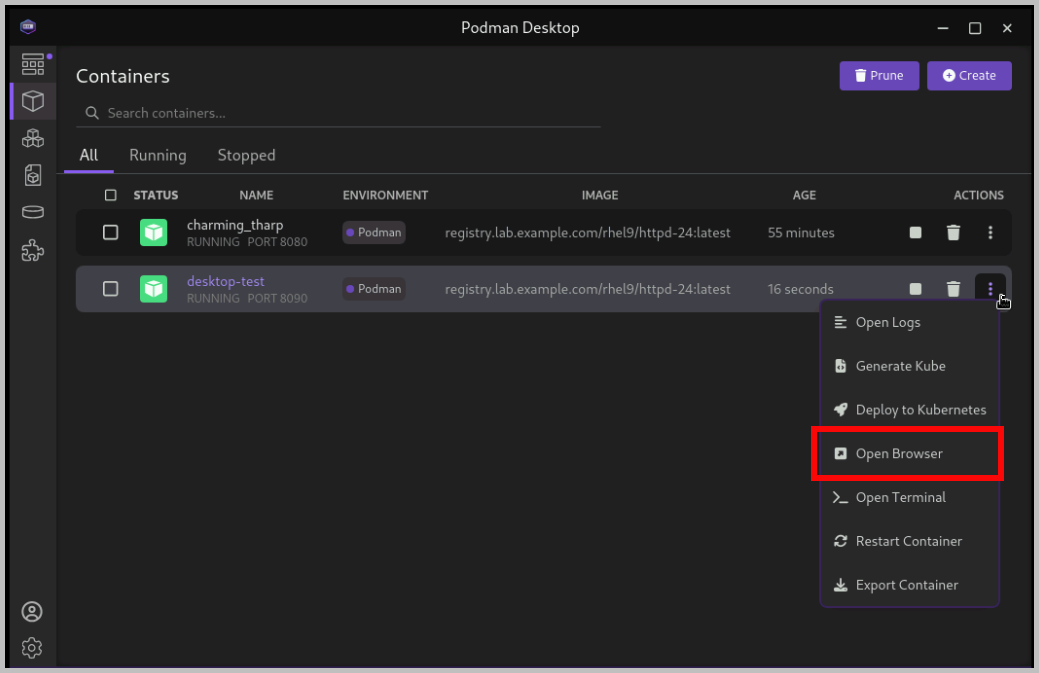
Navigate to the containers menu and verify that the
desktop-testcontainer is running.In the
desktop-testcontainer, click the vertical ellipsis icon () on the right, select , and then click in the confirmation dialog box.
Verify that the browser can access the HTTP server at
http://localhost:8090.Return to Podman Desktop. In the
desktop-testcontainer, click the icon to delete the container, and then close Podman Desktop.