RHCSA Rapid Track
Podman is an open source tool that you can use to manage your containers locally. With Podman, you can find, run, build, or deploy OCI (Open Container Initiative) containers and container images.
By default, Podman is daemonless. A daemon is a process that is always running and ready to receive incoming requests. Some other container tools use a daemon to proxy the requests, which brings a single point of failure. In addition, a daemon might require elevated privileges, which is a security concern. Podman interacts directly with containers, images, and registries without a daemon.
Podman comes in the form of a command-line interface (CLI), which is supported for several operating systems. Along with the CLI, Podman provides two additional ways to interact with your containers and to automate processes: the RESTful API and a desktop application called Podman Desktop.
After you install Podman, you can use it by running the podman command. The following command displays the version that you are using.
[user@host ~]$podman -vpodman versionVERSION
Before you can run your application in a container, you must create a container image.
With Podman, you fetch container images from image registries by using the podman pull command. For example, the following command fetches a containerized version of Red Hat Enterprise Linux 9 from the Red Hat Registry.
[user@host ~]$ podman pull registry.redhat.io/rhel9/rhel-guest-image:9.4
Trying to pull registry.redhat.io/rhel9/rhel-guest-image:9.4...
Getting image source signatures
...output omitted...
Writing manifest to image destination
Storing signatures
b85986059f7663c1b89431f74cdcb783f6540823e4b85c334d271f2f2d8e06d6
The containerized RHEL 9 image is referenced in the form NAME:VERSION9.4 version of the registry.redhat.io/rhel9/rhel-guest-image image.
After you run the pull command, the image is stored locally in your system. You can list the images in your system by using the podman images command.
[user@host ~]$ podman images
REPOSITORY                        TAG         IMAGE ID      CREATED       SIZE
registry.redhat.io/rhel9/rhel-guest-image 9.4 52617ef413bd 2 weeks ago 216 MBA container is an isolated runtime environment where applications are executed as isolated processes. The isolation of the runtime environment ensures that they do not interrupt other containers or system processes.
A container image contains a packaged version of your application, with all the dependencies that are necessary for the application to run. Images can exist without containers, but containers are dependent on images because containers use container images to build a runtime environment to execute applications.
With the image stored in your local system, you can use the podman run command to create a new container that uses the image. The RHEL image from previous examples accepts Bash commands as an argument. These commands are provided as an argument and are executed within a RHEL container.
[user@host ~]$podman run registry.redhat.io/rhel9/rhel-guest-image:9.4 \echo 'Red Hat'Red Hat
In the previous example, the echo 'Red Hat' command is provided as an argument to the podman run command. Podman executes the echo command inside the RHEL container and displays the output of the command.
Note
If you run a container from an image that is not stored in your system, then Podman tries to pull the image from a container registry before running the container.
Therefore, it is not necessary to execute the pull command first.
When the container finishes executing the echo command, the container stops because no other process keeps it running. You can list the running containers by using the podman ps command.
[user@host ~]$ podman ps
CONTAINER ID  IMAGE       COMMAND     CREATED     STATUS      PORTS       NAMES
By default, the podman ps command lists the following details for your containers.
The container's ID
The name of the image that the container is using
The command that the container is executing
The time that the container was created
The status of the container
The exposed ports in the container
The name of the container
However, stopping a container is not the same as removing a container. Although the container is stopped, Podman does not remove it. You can list all containers (running and stopped) by adding the --all flag to the podman ps command.
[user@host ~]$ podman ps --all
CONTAINER ID  IMAGE                              COMMAND       CREATED       STATUS                   PORTS       NAMES
20236410bcef  registry.redhat.io/rhel9/rhel-guest-image:9.4  echo Red Hat  1 second ago  Exited (0) 1 second ago              hungry_mclaren
You can also automatically remove a container when it exits by adding the --rm option to the podman run command.
[user@host ~]$podman run --rm registry.redhat.io/rhel9/rhel-guest-image:9.4\echo 'Red Hat'Red Hat [user@host ~]$podman ps --allCONTAINER ID IMAGE COMMAND CREATED STATUS PORTS NAMES
If you do not provide a name for the container during its creation, then Podman generates a random string name for the container. It is important to define a unique name to facilitate the identification of your containers when managing their lifecycle.
You can assign a name to your containers by adding the --name flag to the podman run command.
[user@host ~]$ podman run --name podman_rhel9 \
registry.redhat.io/rhel9/rhel-guest-image:9.4 echo 'Red Hat'
Red Hat
Podman can identify the containers either by the Universal Unique Identifier (UUID) short identifier, which is composed of twelve alphanumeric characters, or by the UUID long identifier, which is composed of 64 alphanumeric characters, as shown in the example.
[user@host ~]$podman ps --allCONTAINER ID IMAGE COMMAND CREATED STATUS PORTS NAMES20236410bcefregistry.redhat.io/rhel9/rhel-guest-image:9.4 echo Red Hat 1 second ago Exited (0) 1 second agopodman_rhel9
In this example, 20236410bcef is the container's ID, or UUID short identifier. Additionally, podman_rhel9 is listed as the container's name.
If you want to retrieve the UUID long container ID, then you can add the --format=json flag to the podman ps --all command.
[user@host ~]$podman ps --all --format=json{ "AutoRemove": false, "Command": [ "echo", "Red Hat" ], ...output omitted..."Id": "2024...b0b2","Image": "registry.redhat.io/rhel9/rhel-guest-image:9.4", ...output omitted...

| UUID long container ID. |
You can retrieve information about a container in either the JSON format or as a Go template.
Many applications, such as web servers or databases, run indefinitely to wait for connections. Therefore, the containers for these applications must run indefinitely. At the same time, it is usually necessary for these applications to be accessed externally through a network protocol.
You can use the -p option to map a port in your local machine to a port inside the container. This way, the traffic in your local port is forwarded to the port inside the container, which enables you to access the application from your computer.
The following example creates a new container that runs an Apache HTTP server by mapping the 8080 port in your local machine to the 8080 port inside the container.
[user@host ~]$ podman run -p 8080:8080 \
 registry.access.redhat.com/ubi9/httpd-24:latest
...output omitted...
[Thu Jun 18 12:58:57.048491 2024] [ssl:warn] [pid 1:tid 140259.33613248] AH01909: 10.0.2.100:8443:0 server certificate does NOT include an ID which matches the server name
[Thu Jun 18 12:58:57.048899 2024] [:notice] [pid 1:tid 140259.33613248] ModSecurity for Apache/2.9.2 (http://www.modsecurity.org/) configured.
...output omitted...
[Thu Jun 18 12:58:57.136272 2024] [mpm_event:notice] [pid 1:tid 140259.33613248] AH00489: Apache/2.4.37 (Red Hat Enterprise Linux) OpenSSL/1.1.1k configured -- resuming normal operations
[Thu Jun 18 12:58:57.136332 2024] [core:notice] [pid 1:tid 140259.33613248] AH00094: Command line: 'httpd -D FOREGROUND'
You can access the HTTP server at localhost:8080.
If you want the container to run in the background, to avoid the terminal being blocked, then you can use the -d option.
[user@host ~]$ podman run -d -p 8080:8080 \
 registry.access.redhat.com/ubi9/httpd-24:latest
b7eb467781106e4f416ba79cede91152239bfc74f6a570c6d70baa4c64fa636aEnvironment variables are variables used in your applications that are set outside of the program. The operating system or the environment where the application runs provides the value of the variable. You can access the environment variable in your application at runtime.
Environment variables are a useful and safe way of injecting environment-specific configuration values into your application.
For example, your application might use a database hostname that is different for each application environment, such as the database.local, database.stage, or database.test hostnames.
You can pass environment variables to a container by using the -e option. In the following example, an environment variable called NAME with the value Red Hat is passed. Then, the environment variable is printed by using the printenv command inside the container.
[user@host ~]$ podman run -e NAME='Red Hat' \
registry.redhat.io/rhel9/rhel-guest-image:9.4 printenv NAME
Red Hat
Podman Desktop is a graphical user interface that you can use to manage and interact with containers in local environments. It uses the Podman engine by default, and supports other container engines as well, such as Docker.
On launch, Podman Desktop displays a dashboard with information about the status of the Podman engine. The dashboard might display warnings or errors, for example, if the Podman engine is not installed, or if the Docker compatibility is not fully set up.
 |
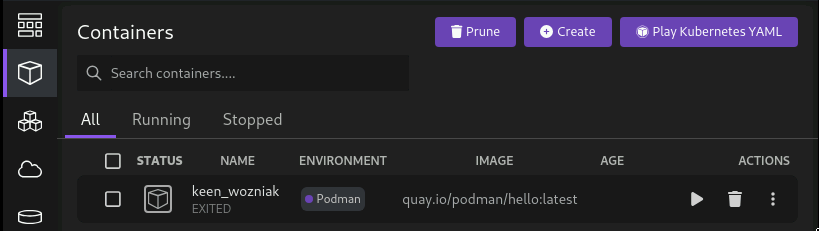
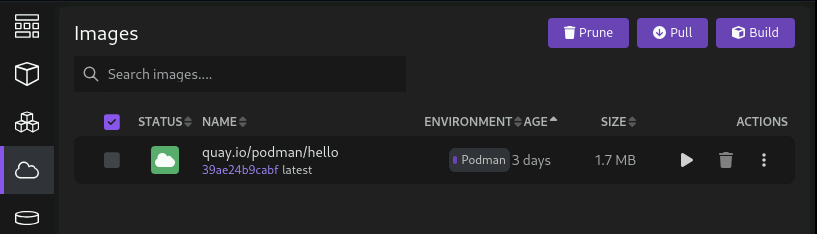
With Podman Desktop, you can perform many of the tasks that you can do with the podman CLI, such as pulling images and creating containers.
For example, you can create, list, and run containers from the section, as the following image shows:
 |
Similarly, you can pull, list images, and create containers from those images in the section.
 |
Podman Desktop is an addition to the podman CLI, rather than a replacement.
For more advanced commands or options, the CLI is required.
Still, Podman Desktop can be useful for users who prefer graphical environments for common tasks, and for beginners who are learning about containers.
Podman Desktop is modular and extensible. You can use and create extensions that provide additional capabilities. For example, with the Red Hat OpenShift extension, Podman Desktop can deploy containers to Red Hat OpenShift Container Platform.
Podman Desktop is available for Linux, MacOS, and Windows. For specific installation instructions, refer to the Podman Desktop documentation.
Note
Podman Desktop is not shipped with Red Hat Enterprise Linux. However, Red Hat provides a free download at https://developers.redhat.com/products/podman-desktop/overview.