Red Hat Enterprise Linux Diagnostics and Troubleshooting

In this classroom environment, your primary system for hands-on activities is workstation. The workstation virtual machine (VM) is the only system with a graphical desktop, which is required for using a browser to access web-based tools. Always log in directly to workstation first. From workstation, use ssh for command-line access to all other VMs.
Additional student VMs for hands-on exercises include servera and serverb. All of these systems are in the lab.example.com DNS domain.
The utility system hosts an IdM server with a .com realm.
All student computer systems have a standard student user account with a student password. The root password on all student systems is redhat.
As seen in SectionFigure 0.1: Classroom environment, all VMs share an external network, 172.25.250.0/24, with a gateway of 172.25.250.254 (bastion).
Table 1. Classroom Machines
| Machine name | IP addresses | Role |
|---|---|---|
| bastion.lab.example.com | 172.25.250.254 | Router to link VMs to central servers |
| workstation.lab.example.com | 172.25.250.9 | Graphical workstation for system administration |
| servera.lab.example.com | 172.25.250.10 | Managed server "A" |
| serverb.lab.example.com | 172.25.250.11 | Managed server "B" |
| classroom.lab.example.com | 172.25.254.254 | The classroom materials and content |
| utility.lab.example.com | 172.25.250.17 | Support services such as DNS and container registry |
The primary function of bastion is to act as a router between the student systems network and the classroom network. If bastion is down, then student machines can access only systems on the individual student network.
Several systems in the classroom provide supporting services. Two server URLs, content.example.com and materials.example.com, provide software and lab materials for the hands-on activities, as described in the activity's instructions. These URLs are aliases of the classroom.example.com server. Both the classroom and bastion systems must remain running for the course environment to work properly.
You are assigned remote computers in a Red Hat Online Learning (ROLE) classroom. Self-paced courses are accessed through a web application that is hosted at . Log in to this site with your Red Hat Customer Portal user credentials.
The virtual machines in your classroom environment are controlled through web page interface controls. The state of each classroom virtual machine is displayed on the tab.
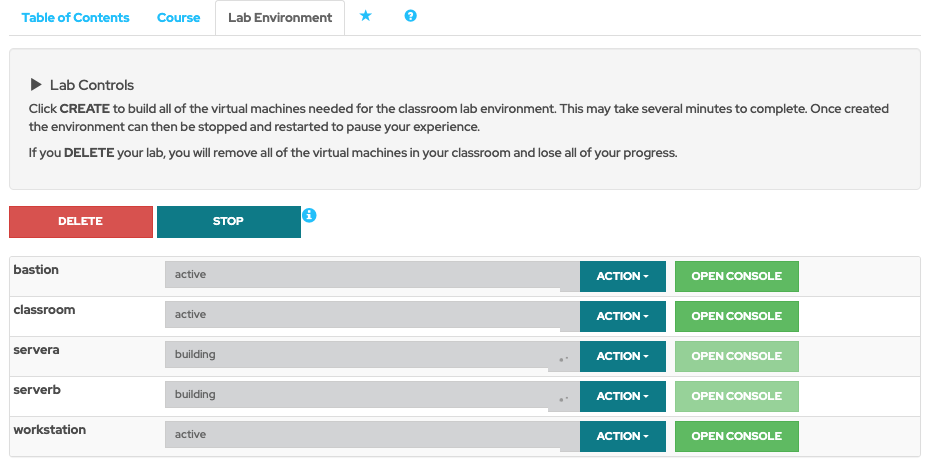
Table 2. Machine States
| Virtual machine state | Description |
|---|---|
| building | The virtual machine is being created. |
| active | The virtual machine is running and available. If it just started, it still might be starting services. |
| stopped | The virtual machine is shut down. On starting, the virtual machine boots into the same state that it was in before shutdown. The disk state is preserved. |
Table 3. Classroom Actions
| Button or action | Description |
|---|---|
| Create the ROLE classroom. Creates and starts all the virtual machines that are needed for this classroom. | |
| The ROLE classroom virtual machines are being created. Creation can take several minutes to complete. | |
| Delete the ROLE classroom. Destroys all virtual machines in the classroom. All saved work on those systems' disks is lost. | |
| Start all virtual machines in the classroom. | |
| All virtual machines in the classroom are starting. | |
| Stop all virtual machines in the classroom. |
Table 4. Machine Actions
| Button or action | Description |
|---|---|
Connect to the system console of the virtual machine in a new browser tab.
You can log in directly to the virtual machine and run commands, when required.
Normally, log in to the workstation virtual machine only, and from there, use ssh to connect to the other virtual machines. | |
| → | Start (power on) the virtual machine. |
| → | Gracefully shut down the virtual machine, preserving disk contents. |
| → | Forcefully shut down the virtual machine, while still preserving disk contents. This action is equivalent to removing the power from a physical machine. |
| → | Forcefully shut down the virtual machine and reset associated storage to its initial state. All saved work on that system's disks is lost. |
At the start of an exercise, if instructed to reset a single virtual machine node, click → for only that specific virtual machine.
At the start of an exercise, if instructed to reset all virtual machines, click → on every virtual machine in the list.
If you want to return the classroom environment to its original state at the start of the course, then click to remove the entire classroom environment. After the lab is deleted, then click to provision a new set of classroom systems.
Warning
The operation cannot be undone. All completed work in the classroom environment is lost.
The Red Hat Online Learning enrollment entitles you to a set allotment of computer time. To help to conserve your allotted time, the ROLE classroom uses timers, which shut down or delete the classroom environment when the appropriate timer expires.
To adjust the timers, locate the two buttons at the bottom of the course management page. Click the auto-stop button to add another hour to the auto-stop timer. Click the auto-destroy button to add another day to the auto-destroy timer. Auto-stop has a maximum of 11 hours, and auto-destroy has a maximum of 14 days. Be careful to keep the timers set while you are working, so that your environment is not unexpectedly shut down. Be careful not to set the timers unnecessarily high, which could waste your subscription time allotment.


