Red Hat Enterprise Linux Diagnostics and Troubleshooting
The Red Hat Customer Portal https://access.redhat.com provides customers with access to their subscription benefits in one place. Customers can search for solutions, FAQs, Knowledgebase articles, and official product documentation. Many features are accessible to everyone, while some are exclusive to customers with active subscriptions.

At the Customer Portal, customers can manage Red Hat product subscriptions on registered systems, download software, upgrades, and evaluations, and submit and manage support cases for those systems. The Red Hat Customer Portal supports using the command-line redhat-support-tool to access the same services. Help for obtaining access is available at https://access.redhat.com/help/.
The Red Hat Knowledgebase is at https://access.redhat.com/knowledgebase/.
Red Hat Enterprise Linux includes the sos report tool in the sos package. This tool collects configuration details, log files, system information, diagnostic information, then combines the results in a tarball to attach to an open Red Hat Support case. The command can collect information from multiple systems. The tool requires root privileges.
The sos clean subcommand obfuscates potentially sensitive system information that is not removed by standard sos report postprocessing. This data includes IP addresses, networks, MAC addresses, and more.
When run without options, the sos report command prompts the user for a case number, and then collects a default set of files and settings, and creates the tarball. Options can enable or disable plug-ins, configure plug-in options, and make the process run without interaction.
Run sos report -l to view all plug-ins and those which are currently enabled, and configurable plug-in options. To enable additional plug-ins, use the -e ENABLE_PLUGINS option. To configure plug-in options, use the -k PLUGOPTS option. The -n SKIP_PLUGINS option disables unwanted plug-ins in the report execution.
Use the --encrypt-key and --encrypt-pass options with sos report command to generate encrypted reports.
Note
If the sos report command fails, you can collect the data manually. Follow the steps in Knowledgebase solution 68996.
Sosreport fails. What data should I provide in its place? at https://access.redhat.com/solutions/68996
The Red Hat Support Tool utility redhat-support-tool provides a text-console interface to the Red Hat Access subscription services. Internet access is required. The redhat-support-tool is a text-based tool, which can be run using SSH or from any terminal.
The redhat-support-tool can use an interactive shell or be invoked as individual commands with options and arguments. The syntax is identical for both methods. By default, the program launches in shell mode. Use the help subcommand to view available subcommands. Shell mode supports tab completion and calling other programs from the parent shell.
[user@host ~]$ redhat-support-tool
Welcome to the Red Hat Support Tool.
Command (? for help):
When first invoked, redhat-support-tool prompts for the required Red Hat Access subscriber login information. To avoid repetitively supplying this information, the tool asks to store account information in the user's home directory, ~/.redhat-support-tool/redhat-support-tool.conf. If many users share a Red Hat Access account, the --global option can save account information to /etc/redhat-support-tool.conf, along with other systemwide configuration. The tool's config command modifies tool configuration settings.
Subscribers can use the redhat-support-tool to search and display the same Knowledgebase content as on the Red Hat Customer Portal. Knowledgebase permits keyword searches, similar to the man command. Users can enter error codes, syntax from log files, or any mix of keywords to produce a list of relevant solution documents.
The following output is an initial configuration and basic search demonstration:
[user@host ~]$redhat-support-toolWelcome to the Red Hat Support Tool. Command (? for help):search How to manage system entitlements with subscription-managerPlease enter your RHN user ID:subscriberSave the user ID in /home/user/.redhat-support-tool/redhat-support-tool.conf (y/n):yPlease enter the password for subscriber:passwordSave the password for subscriber in /home/user/.redhat-support-tool/redhat-support-tool.conf (y/n):y
After prompting for the user configuration, the tool continues with the search request:
Type the number of the solution to view or 'e' to return to the previous menu.
1 [ 253273:VER] How to register and subscribe a system to the Red Hat Customer Portal using Red Hat Subscription-Manager
2 [3121571:VER] How to register and subscribe a system offline to the Red Hat Customer Portal?
2 of 50 solutions displayed. Type 'm' to see more, 'r' to start from the beginning again, or '?' for help with the codes displayed in the above output.
Select a Solution: 1
You can select specific sections of solution documents for viewing.
Type the number of the section to view or 'e' to return to the previous menu. 1 Title 2 Issue 3 Environment 4 Resolution 5 Display all sections End of options. Section:1Title =============================================================================== How to register and subscribe a system to the Red Hat Customer Portal using Red Hat Subscription-Manager URL: https://access.redhat.com/solutions/253273 Created On: 2012-10-30T04:24:25-04:00 Modified On: 2017-11-29T10:33:51-05:00 (END)q
Locate online articles using the tool's kb command with the Knowledgebase document ID. Documents scroll without pagination, allowing a user to redirect the output to other commands.
[user@host ~]$redhat-support-tool kb 253273 | lessTitle =============================================================================== How to register and subscribe a system to the Red Hat Customer Portal using Red Hat Subscription-Manager URL: https://access.redhat.com/solutions/253273 Issue =============================================================================== * How to register a new `Red Hat Enterprise Linux` system to the Customer Portal using `Red Hat Subscription-Manager` * How to un-register a system using `Red Hat Subscription-Manager` :q
Documents that are retrieved in unpaginated format are easy to send to a printer, or convert to PDF or other document format. Documents can also be redirected to a data entry program for an incident tracking or change management system, by using other utilities that are installed and available in Red Hat Enterprise Linux.
One subscription benefit is access to technical support through Red Hat Customer Portal. Depending on the system's subscription support level, Red Hat may be contacted through online tools or by phone. See https://access.redhat.com/site/support/policy/support_process for information about the support process.
Before contacting Red Hat Support, gather relevant information for a bug report.
Define the problem. Clearly state the problem and its symptoms. Be as specific as possible. Detail the steps to reproduce the problem.
Gather background information. Which products and versions are affected? Be ready to provide relevant diagnostic information. The files can include the output of
sos report, as discussed earlier in this section. For kernel problems, the files could include the system'skdumpcrash dump or a digital photo of the kernel backtrace that is displayed on the monitor of a crashed system.Determine the severity level. Red Hat uses four severity levels to classify issues. Urgent and High severity problem reports should be followed by a phone call to the relevant local support center.
| Severity | Description |
|---|---|
| Urgent (Severity 1) | A problem that severely impacts use of the software in a production environment (such as loss of production data, or production systems are not functioning). The situation halts business operations and no procedural workaround exists. |
| High (Severity 2) | A problem where the software is functioning, but use in a production environment is severely reduced. The situation is causing a high impact to portions of the business operations and no procedural workaround exists. |
| Medium (Severity 3) | A problem that involves partial, non-critical loss of use of the software in a production environment or development environment. For production environments, the situation has a medium-to-low impact on the business, but the business continues to function, including by using a procedural workaround. For development environments, the situation is causing the project to no longer continue or migrate into production. |
| Low (Severity 4) | A general usage question, reporting of a documentation error, or recommendation for a future product enhancement or modification. For production environments, the situation has a low-to-no impact on the business or on the performance or functionality of the system. For development environments, there is a medium-to-low impact on the business, but the business continues to function, including by using a procedural workaround. |
Subscribers can create, view, modify, and close Red Hat Support cases with redhat-support-tool. When support cases are opened or maintained, users can include files or documentation, such as diagnostic reports (sos report). The tool uploads and attaches files to online cases. Case details including product, version, summary, description, severity, and case group may be assigned with command options or by allowing the tool to prompt for required information. In this example, the --product and --version options are specified, but redhat-support-tool could provide choices if the opencase command had not specified them.
[student@demo ~]$redhat-support-toolWelcome to the Red Hat Support Tool. Command (? for help):opencase --product="Red Hat Enterprise Linux" --version="8.4"Please enter a summary (or 'q' to exit): System fails to run without power Please enter a description (Ctrl-D on an empty line when complete): When the server is unplugged, the operating system fails to continue. 1 Low 2 Normal 3 High 4 Urgent Please select a severity (or 'q' to exit):4Would you like to use the default (Ungrouped Case) Case Group (y/N)? :yWould see if there is a solution to this problem before opening a support case? (y/N)N-------------------------------------------------------------------- Support case 03022708 has successfully been opened.
Including diagnostic information when you create a support case contributes to quicker problem resolution. The sos report command generates a compressed tarball archive of diagnostic information that is gathered from the running system. The redhat-support-tool prompts to include another tarball if an archive was created previously:
Please attach a SoS report to support case 03022708. Create a SoS report as
the root user and execute the following command to attach the SoS report
directly to the case:
 redhat-support-tool addattachment -c 03022708 <path to sosreport>

Would you like to attach a file to 03022708 at this time? (y/N) N
Command (? for help):
If an sos report archive is not already prepared, then an administrator can generate and attach one later, with the tool's addattachment command. Subscribers can view, modify, and close support cases.
Command (? for help):listcasesType the number of the case to view or 'e' to return to the previous menu. 1 03022708 [Waiting on Red Hat ] [sev4] System fails to run without power No more cases to display Select a Case:1Type the number of the section to view or 'e' to return to the previous menu. 1 Case Details 2 Modify Case 3 Description 4 Get Attachment 5 Add Attachment 6 Add Comment End of options. Option:qSelect a Case:qCommand (? for help):q[user@host ~]$redhat-support-tool modifycase --status=Closed 03022708[user@host ~]$
The Red Hat Support Tool has advanced application analytic capabilities. With kernel crash dump files, the redhat-support-tool command can create and extract a backtrace report of the active stack frames at the point of a crash dump, to provide onsite diagnostics and to open a support case.
The tool analyzes log files. With the tool's analyze command, you can parse log files of many applications to recognize problem symptoms. You can use these log files to inspect and diagnose unexpected individual behaviors.
The Red Hat Customer Portal home page provides a Tools menu to troubleshoot Red Hat products, making it easy to search for common issues and possible solutions.

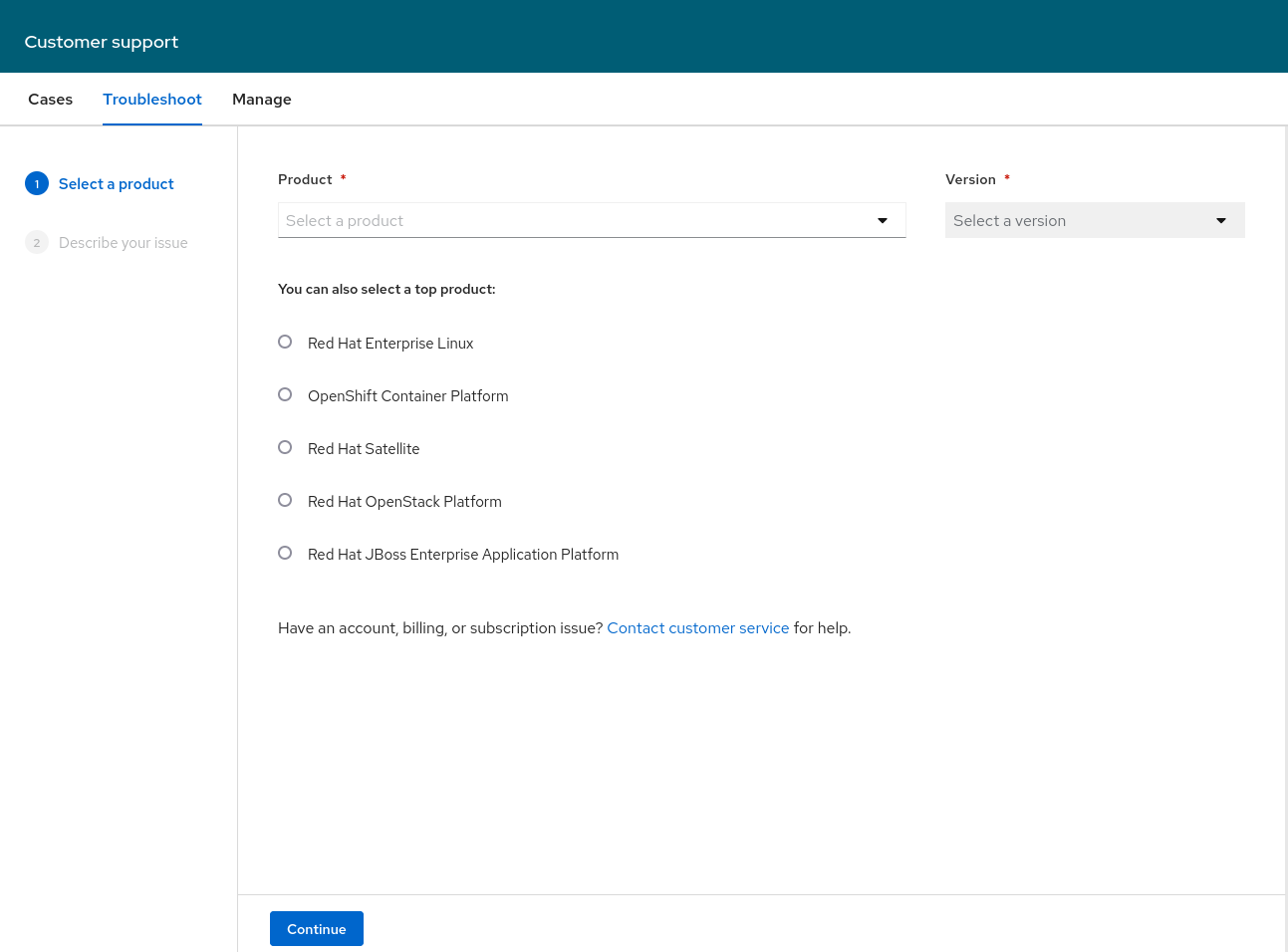
The Red Hat Customer Support Troubleshoot tool, at https://access.redhat.com/support/cases/#/troubleshoot/describe-issue, helps with searching for common solutions in the Knowledgebase.
Red Hat Customer Portal Labs, at https://access.redhat.com/labs, provide web-based applications to aid in configuration, deployment, security, and troubleshooting.
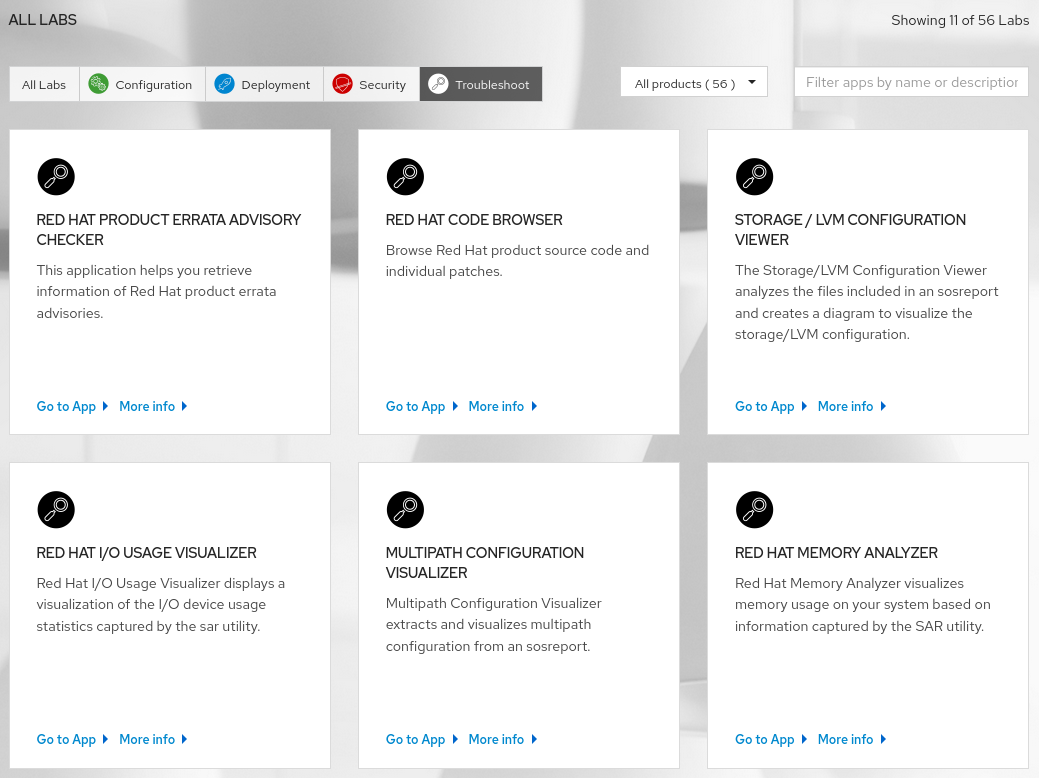
The Customer Portal Troubleshooting Labs include various analysis tools:
- Red Hat I/O Usage Visualizer
Provides a visualize I/O usage report.
- Red Hat Memory Analyzer
Provides a visualize memory usage report.
- JVMPeg
Help to analyze JVM threads that are overworking a CPU above a specified threshold.
- Log Reaper
The app provides log analysis that emphasizes identification of errors in log files, presented in a view tailored for each log type, with automatic solution recommendations, and targeted analysis.
- Kernel Oops Analyzer
Help to diagnose a kernel fault by using the input of an error message or file that contains one or more kernel oops messages.
Red Hat Insights is a hosted service for system administrators and managers to proactively manage their systems. Red Hat Insights (securely) uploads key information from a system to Red Hat, where it is analyzed, and a set of tailored recommendations are made. These recommendations can help to keep systems stable and performing, by spotting any potential issues and giving remediation advice before they can become larger problems that cause disruption.
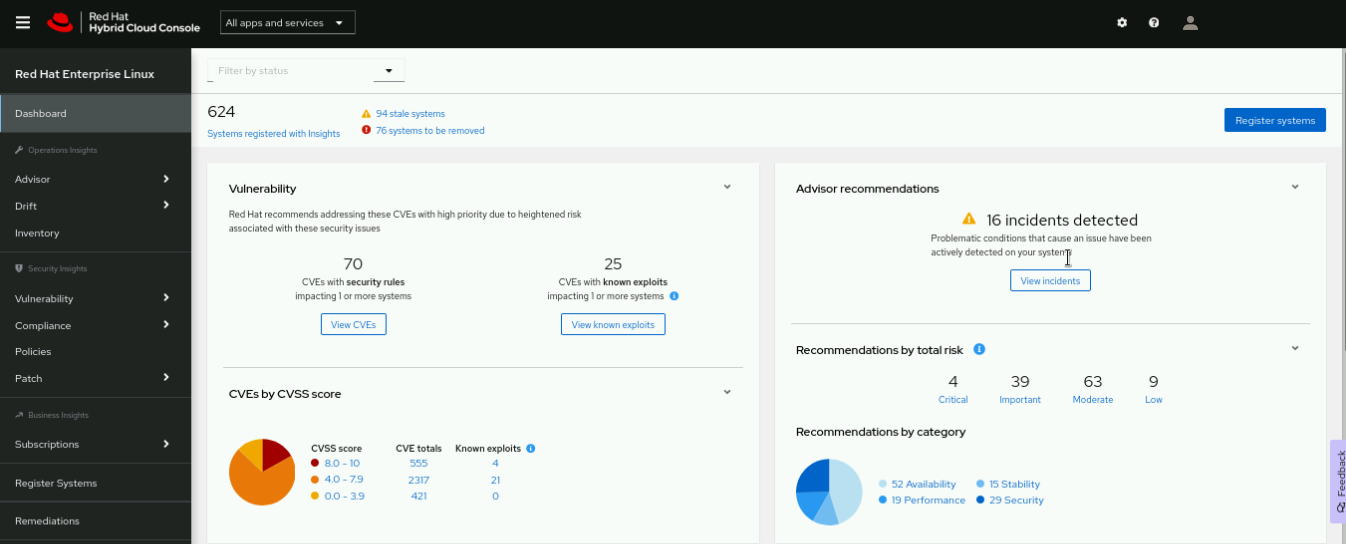
The web interface at https://console.redhat.com/insights outlines issues that can affect registered systems, ordered by severity and type. Administrators can drill down into issues for tailored recommendations. Administrators can also choose to permanently ignore certain rules.
Red Hat Insights provides services to administer and monitor registered systems to troubleshoot and remediate identified issues.
- Advisor
Advisor identifies known configuration risks in the operating system, underlying infrastructure, or workloads that impact performance, stability, availability, or security best practices.
- Vulnerability
Vulnerability assesses, remediates, and reports on Common Vulnerabilities and Exposures (CVEs) that impact Red Hat Enterprise Linux environments in the cloud or on premises.
- Compliance
Compliance analyzes the compliance level of a Red Hat Enterprise Linux environment to an OpenSCAP policy, based on the version of SCAP Security Guide (SSG), supported by Red Hat Enterprise Linux.
- Patch
Patch determines which Red Hat product advisories apply to an organization's specific Red Hat Enterprise Linux instances. The patch provides guidance for remediation either manually or via Ansible Playbooks for patching.
- Drift
Drift compares systems to baselines, system histories, and to each other to troubleshoot or identify differences.
- Policies
Organizations can use the Policies service to define and monitor policies that are important internally, with alerts for environments that are not aligned to a policy.
- Inventory
The Inventory service lists all of the hosts that are registered to Insights.
- Remediations
The Remediation service lists all remediation plans, concentrating them in one place for easy access and analysis. You can download the remediation plans from this service. Alternatively, if Smart Management with Cloud Connector is also configured, then you can execute the playbook directly from the Remediations service.
- Subscription Watch
Subscription Watch provides unified reporting of Red Hat subscription usage for easier and more efficient management of subscriptions to Red Hat Enterprise Linux and Red Hat OpenShift Platform.
To register systems with Red Hat Insights, follow these steps:
Ensure that the
insights-clientpackage is installed:[root@host ~]#
yum install insights-clientRegister the system with Red Hat Insights.
[root@host ~]#
insights-client --registerYou successfully registered 4578cb7f-47a9-4203-bef4-42651a257984 to account 5662036. Successfully registered host host.lab.example.com Automatic scheduling for Insights has been enabled. Starting to collect Insights data for host.lab.example.com Uploading Insights data. Successfully uploaded report from host.lab.example.com to account 5662036. View the Red Hat Insights console at https://cloud.redhat.com/insights/
Immediately after registering a system, Insights data becomes available in the web interface.
References
For more information, refer to the Generating sos Reports for Technical Support Guide at https://access.redhat.com/documentation/en-us/red_hat_enterprise_linux/8/html-single/generating_sos_reports_for_technical_support/index
Red Hat Access: Red Hat Support Tool
Contacting Red Hat Technical Support
Help - Red Hat Customer Portal
sos(1) man page


