Red Hat Enterprise Linux Diagnostics and Troubleshooting
- Section Monitoring Systems
- Guided Exercise: Monitoring Systems
- Configuring Remote Logging
- Guided Exercise: Configuring Remote Logging
- Describing Configuration Management Automation
- Guided Exercise: Implementing Configuration Changes with an Ansible Playbook
- Configuring Change Tracking
- Guided Exercise: Configuring Change Tracking
- Lab: Configuring Baseline Data
- Summary
Abstract
| Goal |
Configure baseline data collection with monitoring, logging, and change tracking. |
| Objectives |
|
| Sections |
|
| Lab |
|
The web console is a Red Hat Enterprise Linux 8 web-based interface. It is built with Cockpit technology, and is designed for managing and monitoring a Linux host. Users administer their system with the graphical interface, without requiring command-line tool knowledge. To perform privileged tasks in the web console, users must be configured for privileges with RHEL sudo configuration.
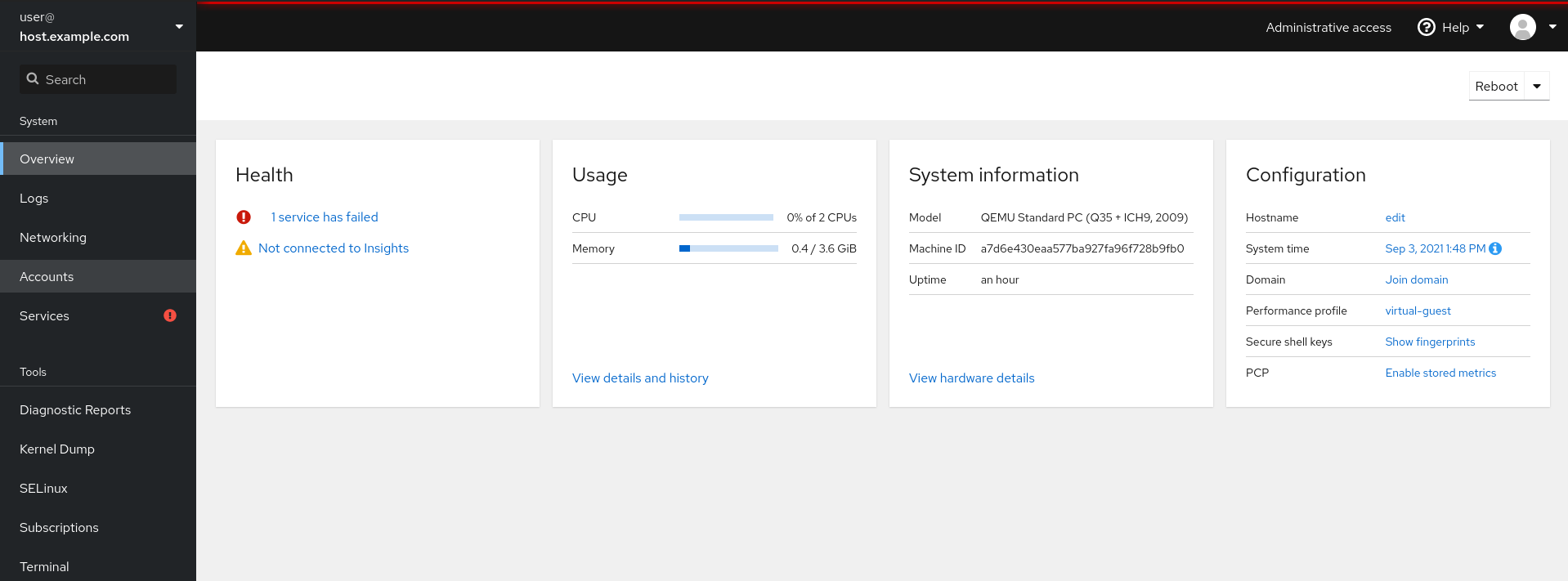
Most Red Hat Enterprise Linux 8 deployments install the web console by default. If necessary, install the cockpit package to obtain the web console.
[root@host ~]# yum install cockpitUse the systemctl command to enable and start the cockpit.socket service.
[root@host ~]# systemctl enable --now cockpit.socketThe web console uses existing system user names and passwords. If you are logging in with a user account with sudo privileges, you can perform privileged tasks in the web console, such as installing software or configuring SELinux.
Running privileged tasks requires entering your user password each time, as you do when running sudo commands on a command line. Alternatively, to avoid re-entering your password for each privileged task, select Reuse my password for privileged tasks on the login screen.
After successful authentication, the web console displays the page.
Extend web console capabilities by installing available add-on packages with yum.
[root@host ~]# yum install add-onThis table lists available add-on applications for the web console.
| Feature | Package | Usage |
|---|---|---|
| Composer |
cockpit-composer
| Building custom OS images |
| PackageKit |
cockpit-packagekit
| Managing packages, and installing updates and applications |
| Performance Metrics |
cockpit-pcp
| Collecting performance metrics |
| Podman containers |
cockpit-podman
| Managing podman containers |
| Session Recording |
cockpit-session-recording
| Recording and managing user sessions |
| Storage |
cockpit-storaged
| Managing system storage |
| Virtual Machines |
cockpit-machines
| Managing libvirt virtual machines |
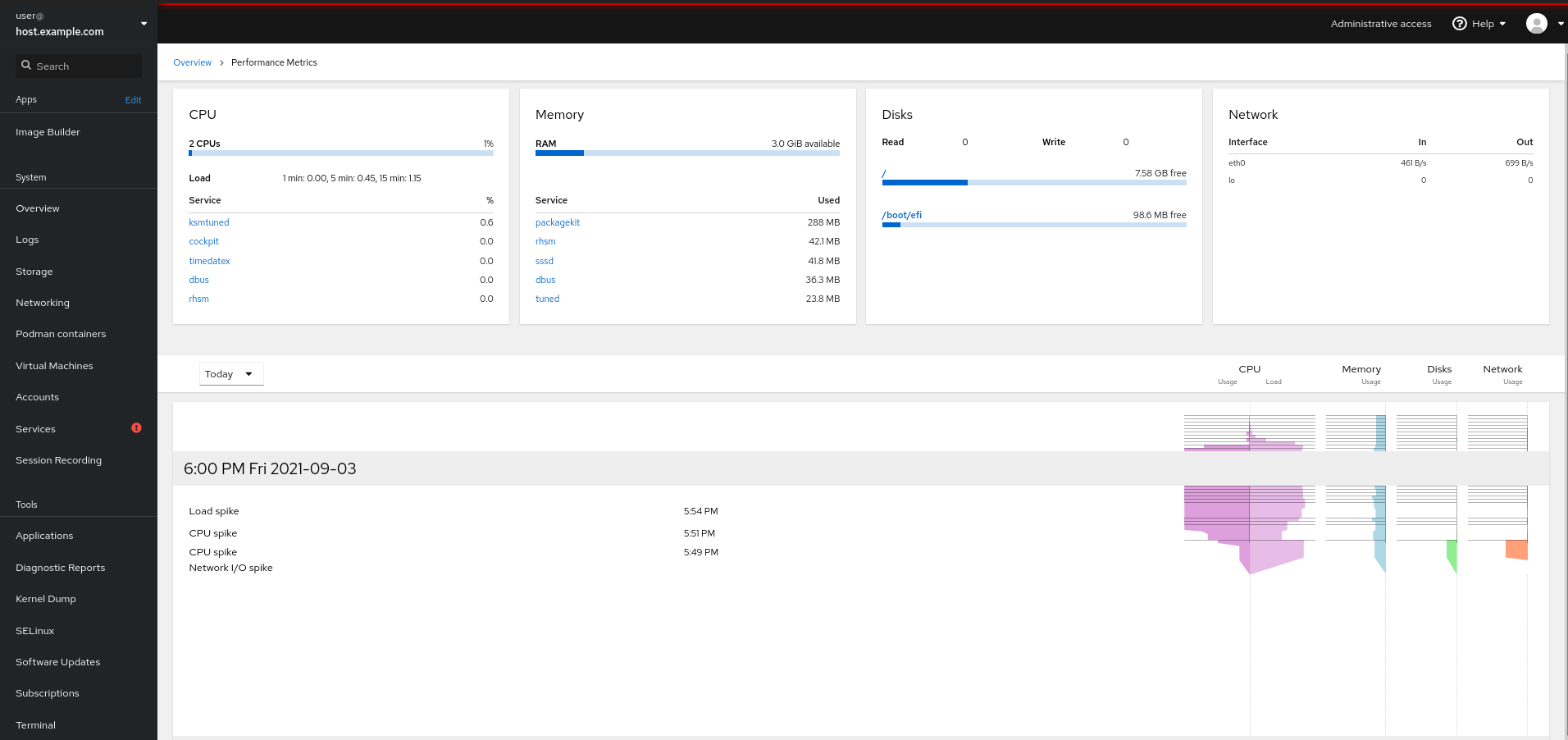
The web console provides observable data for troubleshooting with the Utilization Saturation and Errors (USE) Method. The USE method is a checklist for solving performance issues quickly, by observing utilization, saturation, and errors for each expected resource.
Utilization: the average time that the resource was busy performing work
Saturation: the measurement of how much extra work is queued and not being serviced by the resource
Errors: the number of recorded error events
The → page displays a chronological view of historical data, and lists events, errors, and graphical representations for resource utilization and saturation.
To access the data, navigate to the page, and click the View details and history link.
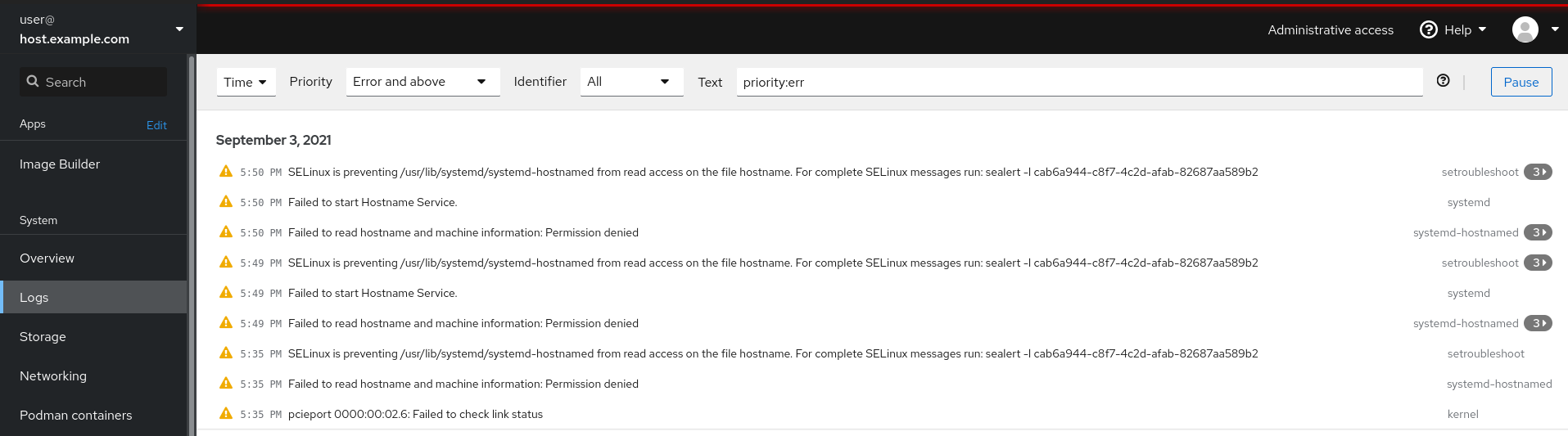
The web console Logs page provides an interface for displaying journalctl log journals. Log entries can be filtered by Time, Priority, Identifier, and Text patterns.
- Time
Filter for a time range.
- Priority
Select a minimum priority level, similar to
journalctl --priority. The default is Error and above.- Identifier
Select a
systemdunit or service name identifier, similar tojournalctl --identifier.- Text
Enter a text pattern to match to filter messages.
The Session Recording capability is new with the web console, and is based on the tlog package. The web console session player can record and play back user terminal sessions. The session player captures terminal input and output and stores the session in a text format in the system journal.
Important
Session recording is disabled by default. When enabled, passwords and sensitive information are stored in plain text.
To enable session recording, install the cockpit-session-recording package, and ensure that the sssd service is enabled and started.
[root@host ~]#yum install cockpit-session-recording[root@host ~]#systemctl status sssd
Configure the sssd-session-recording.conf file to specify the user or user groups to record, and the session scope:
noneto record no sessions.someto record only specified sessions.allto record all sessions.
[root@host ~]# cat /etc/sssd/conf.d/sssd-session-recording.conf
[session_recording]
scope=none
users=
groups=
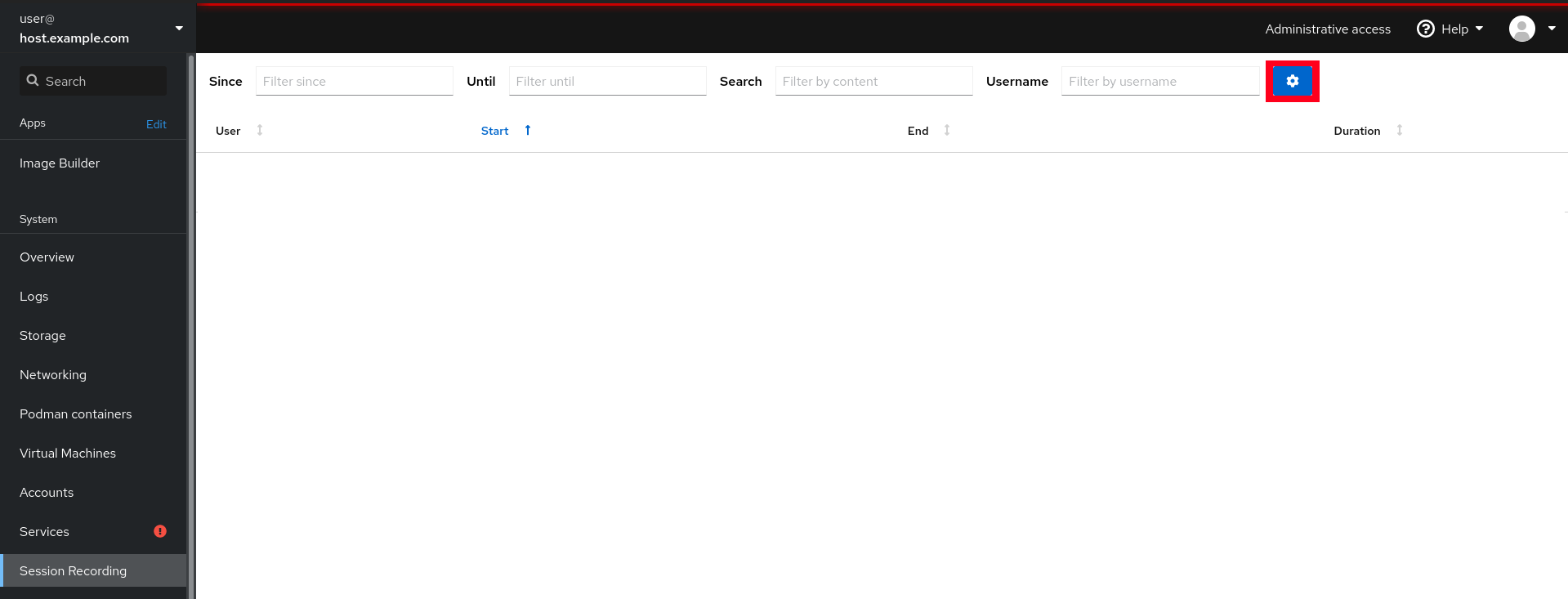
You can configure session recording for users and scope in the web console, on the page. Click the gear icon to open the General Config form and select the wanted options.
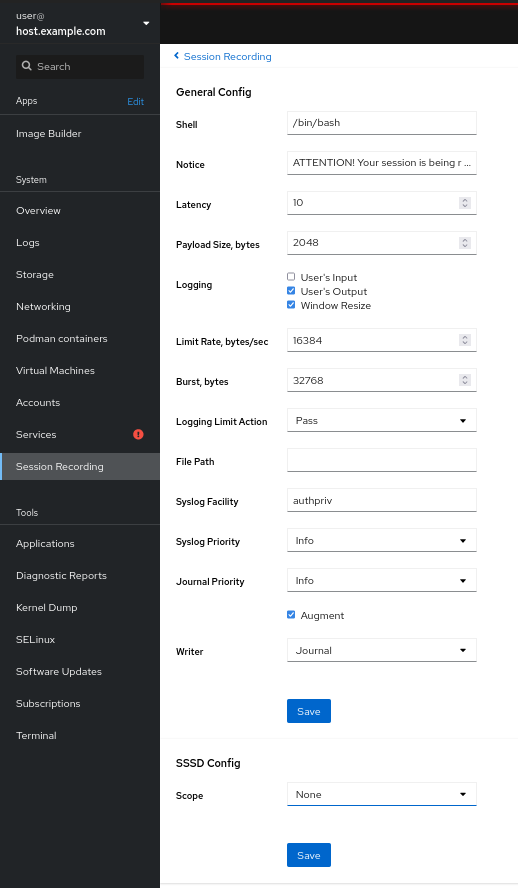
Play back recorded sessions for analysis with web console or with the tlog-play tool that is included in the tlog package.
- Play back with the web console
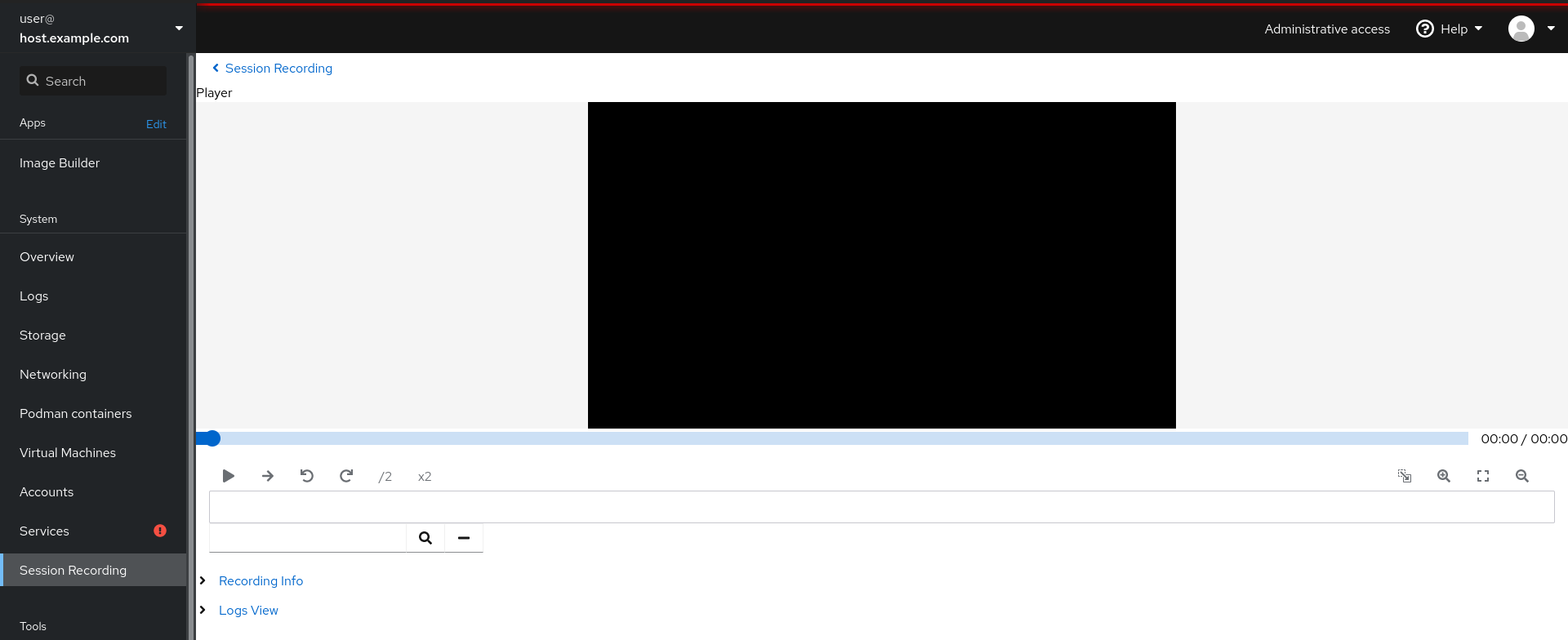
The page lists previously recorded sessions for playback and analysis. To play a session, select and click a session entry in the list. The web console opens a page with playback and analysis controls for the session.
- Play back with
tlog-play Working from the command line, the
tlog-playcommand is the playback program for terminal input and output that are recorded with thetlog-reccommand.When recording a terminal session, specify a file name for capturing the activity.
[user@host ~]$
tlog-rec --file-path=tlog.logAll terminal typing is stored in the log file, until the user types
exitto end the recording.To play back the session, specify the stored log file.
[user@host ~]$
tlog-play --file-path=tlog.log
References
For further information, refer to the Managing Systems Using the RHEL 8 Web Console Guide at https://access.redhat.com/documentation/en-us/red_hat_enterprise_linux/8/html-single/managing_systems_using_the_rhel_8_web_console/index
For further information, refer to the Recording Sessions Guide at https://access.redhat.com/documentation/en-us/red_hat_enterprise_linux/8/html-single/recording_sessions/index
For more information about Cockpit, visit Cockpit Project


