RHCSA Rapid Track
authconfig{,-gtk,-tui} can be used to configure a system to use centralized identity management services.
sssd is configured to retrieve, validate, and cache authentication and user information in the background.
Objectives
After completing this section, students should be able to use centralized identity management services.
User information and authentication services
Need for centralized identity management
Modern computer infrastructures tend to consist of many machines, with multiple services running on them. Keeping local user accounts for all these machines and their services in sync is a daunting task, even more so when passwords need to remain synced.
A solution to this is to not store account information on local systems, but instead retrieve this information from a centralized store. Having user information, and the associated authentication information, centralized also allows for something called Single Sign-On (SSO). With SSO, a user authenticates once using a password (or other means), and then obtains a form of ticket or cookie that can be used to automatically authenticate to other services.
User information and authentication
A centralized identity management system will need to provide at least two services:
Account information: This includes information such as a username, home directory location, UID and GID, group memberships, etc. Popular solutions include LDAP (Lightweight Directory Access Protocol), used in multiple products such as Active Directory and IPA Server, and Network Information Services (NIS).
Authentication information: A means for a system to validate that a user is who he/she claims to be. This can be done by providing a cryptographic password hash to the client system, or by sending the (encrypted) password to the server, and receiving a response. An LDAP server can provide authentication information in addition to account information. Kerberos only provides SSO authentication services, and is typically used alongside LDAP user information. Kerberos is used in both IPA Server and Active Directory.
On a Red Hat Enterprise Linux 7 system, local user information is provided by
/etc/passwd, while authentication information (in the
form of a hashed password) is provided by /etc/shadow.
Attaching a system to centralized LDAP and Kerberos servers
Authconfig
Configuring a Red Hat Enterprise Linux 7 system to use centralized identity management services requires the editing of various files, and the configuration of some daemons. For attaching to central LDAP and Kerberos servers, the following files, at a minimum, would need to be updated:
/etc/openldap/ldap.conf: For information about the central LDAP server and its settings./etc/krb5.conf: For information about the central Kerberos infrastructure./etc/sssd/sssd.conf: To configure the system security services daemon (sssd), the daemon responsible for retrieving and caching user information and authentication info./etc/nsswitch.conf: To indicate to the system which user information and authentication services should be used./etc/pam.d/*: Configuring how authentication should be handled for various services./etc/openldap/cacerts: To store the root certificate authorities (CA) that can validate the SSL certificates used to identify LDAP servers.
The sssd daemon will need to be enabled and started before the system can use it.
With this number of files and services to configure, a mistake is easily made. Red Hat Enterprise Linux 7 ships with a suite of tools to automate these configurations: authconfig. authconfig consists of three related tools that can all perform the same actions:
authconfig: A command-line tool. This tool can be used to automate configurations across a number of systems. The commands used with authconfig tend to be very long, with multiple options being passed in. This tool is installed using the authconfig package.
authconfig-tui: The interactive version of authconfig. Uses a menu-driven text interface. Can be used over ssh. This tool is installed using the authconfig package.
authconfig-gtk: This version launches a graphical interface. It can also be launched as system-config-authentication. This tool is installed using the authconfig-gtk package.
Necessary LDAP parameters
To connect to a central LDAP server for user information, authconfig needs a number of settings:
The host name of the LDAP server(s)
The base DN (Distinguished Name) of the part of the LDAP tree where the system should look for users. This typically looks something like
dc=example,dc=com, orou=People,o=PonyCorp. This information will be provided by your LDAP server administrator.If SSL/TLS is used to encrypt communications with the LDAP server, a root CA certificate that can validate the certificates is offered by the LDAP server.
Important: A system will also need some extra packages installed to provide LDAP client functionality. Installing sssd will provide all the necessary dependencies.
Necessary Kerberos parameters
To configure a system to use a centralized Kerberos system for user authentication, authconfig will need the following settings:
The name of the Kerberos realm to use. A Kerberos realm is a domain of machines that all use a common set of Kerberos servers and users for authentication.
One or more key distribution centers (KDC). This is the host name of your Kerberos server(s).
The host name of one or more admin servers. This is the machine that clients will talk to when they want to change their password, or perform other user modifications. This is typically the same as the primary KDC, but it can be a different machine.
In addition, an administrator can specify if DNS should be used to look up the realm to use for a specific host name, and to automatically find the KDCs and admin servers. An extra package can be installed to help debug Kerberos issues, and to work with Kerberos tickets from the command line: krb5-workstation.
Using authconfig-gtk
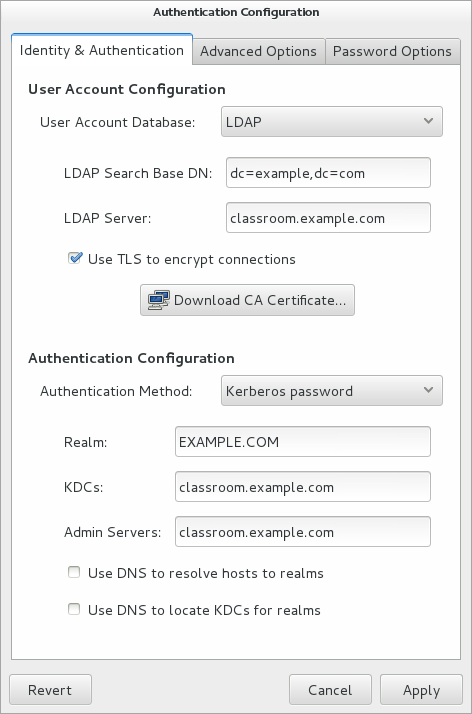
To use authconfig-gtk to configure a system for LDAP + Kerberos, use the following steps:
Install all the necessary packages:
[student@demo ~]$sudo yum -y install authconfig-gtk sssd krb5-workstationLaunch authconfig-gtk, either from the command line or from → → . Enter the
rootpassword when prompted.On the Identity & Authentication tab, select LDAP from the User Account Database drop-down. Fill out the LDAP Search Base DN and LDAP Server fields.
If the LDAP server supports TLS, check the Use TLS to encrypt connections box, and use the button to download the CA certificate.
From the Authentication Method dropdown, select Kerberos password, and fill out the Realm, KDCs, and Admin Servers fields. The last two fields are not available if the Use DNS to locate KDCs for realms option is checked.
If central home directories are not available, users can create directories on first login by checking the Create home directories on the first login box on the Advanced Options tab.
Click the button to save and activate the changes. This will write all relevant configuration files and (re)start the sssd service.
Warning
Due to a known bug (https://bugzilla.redhat.com/show_bug.cgi?id=1184639) in the authconfig-6.2.8-8.el7 results in a bogus krb5_realm value as '#' in the /etc/sssd/sssd.conf. When using authconfig-gtk, this issue can be avoided by removing the default '#' value from Realm field. Also when using authconfig command line, make sure to use --krb5realm= option to enter a realm when applicable and verify files /etc/krb5.conf and /etc/sssd/sssd.conf for broken values.
Red Hat product support has provided an errata version authconfig-6.2.8-10.el7 which resolves this issue for production environments. Refer: https://rhn.redhat.com/errata/RHBA-2015-2403.html
Testing a configuration
To test the LDAP + Kerberos configuration, an administrator can simply
attempt to log into the system (over ssh) using the
credentials of one of the network users. In addition, the
getent command can be used to retrieve information about
a network user, in the form getent passwd
<USERNAME>.
Important: In the default configuration, sssd will not enumerate network users when no username is specified to the getent command. This is done to keep the graphical login screen uncluttered and to save valuable network resources and time.
Attaching a System to an IPA Server
Red Hat provides an integrated solution for configuring LDAP and Kerberos: IPA (Identity, Policy, and Auditing) Server. IPA Server provides LDAP and Kerberos, combined with a suite of both command-line and web-based administration tools. Apart from user and authentication information, IPA Server can centralize sudo rules, SSH public keys, SSH host keys, TLS certificates, automounter maps, and much more.
Using ipa-client
A Red Hat Enterprise Linux 7 system can be configured to use an IPA server using the authconfig suite of tools, but a specialized tool also exists: ipa-client-install. This command can be installed from the ipa-client package, which pulls in all dependencies (such as sssd).
One of the benefits of using ipa-client-install is that it can retrieve almost all necessary information from DNS (when configured either by the IPA server or manually by an administrator), as well as create host entries and more on the IPA server. This allows an IPA server administrator to set access policies for that host, create service principals (e.g., for NFSv4 exports), and more.
When ipa-client-install is run without any arguments, it
will first attempt to retrieve information about the IPA server configured
for its DNS domain from DNS. If that fails, it will prompt the
administrator for the necessary information, such as the domain name of
the IPA server and the realm to use. Other information that needs to be
provided are the username and password of an account that is allowed to
create new machine entries on the IPA server. Unless another account has
been created for this, the default IPA server administrator account
(admin) can be used for this.
The following is an example of a (mostly) DNS driven configuration:
[student@desktop ~]$sudo ipa-client-installDiscovery was successful! Hostname: desktop.domain0.example.com Realm: DOMAIN0.EXAMPLE.COM DNS Domain: server.domain0.example.com IPA Server: server.domain0.example.com BaseDN: dc=server,dc=domain0,dc=example,dc=comContinue to configure the system with these values? [no]:yesUser authorized to enroll computers:adminSynchronizing time with KDC...Password for admin@DOMAIN0.EXAMPLE.COM:redhat123Successfully retrieved CA cert Subject: CN=Certificate Authority,O=DOMAIN0.EXAMPLE.COM Issuer: CN=Certificate Authority,O=DOMAIN0.EXAMPLE.COM Valid From: Thu Feb 27 13:31:04 2014 UTC Valid Until: Mon Feb 27 13:31:04 2034 UTC Enrolled in IPA realm DOMAIN0.EXAMPLE.COM Created /etc/ipa/default.conf New SSSD config will be created Configured /etc/sssd/sssd.conf Configured /etc/krb5.conf for IPA realm DOMAIN0.EXAMPLE.COM Adding SSH public key from /etc/ssh/ssh_host_rsa_key.pub Adding SSH public key from /etc/ssh/ssh_host_ecdsa_key.pub SSSD enabled Configured /etc/openldap/ldap.conf Configured /etc/ssh/ssh_config Configured /etc/ssh/sshd_config Client configuration complete.
It is possible to specify all needed information as command-line arguments, allowing for unattended setups as part of an initial system configuration; for example, from a kickstart. See the manual page for ipa-client-install(1) for more information.
Joining a system to Active Directory
Red Hat Enterprise Linux 7 features multiple methods of joining a system to Active Directory. Administrators can choose to install the samba-winbind package and configure winbind through the authconfig family of tools, or administrators can install both sssd and realmd packages and use sssd and the realm command.
Note
The realm command can also be used to join Kerberos
realms, or IPA server domains, but the final configuration will be
slightly different; for example, users will have @domain
appended to their usernames. ipa-client-install is the
preferred method to join IPA domains.
Note
Since there is no Active Directory server running in the classroom, there is no current possibility to practice these steps.
The following is an example of using realmd to join an
Active Directory domain, and allow Active Directory users to log into the
local system. This example assumes that the Active Directory domain is
called domain.example.com.
Install the necessary packages: realmd.
[student@demo ~]$sudo yum -y install realmdDiscover the settings for the
domain.example.comdomain.[student@demo ~]$sudo realm discover domain.example.comJoin the Active Directory domain; this will install all necessary packages, and configure sssd, pam,
/etc/nsswitch.conf, etc.[student@demo ~]$sudo realm join domain.example.comThis will attempt to join the local system to Active Directory using the
Administratoraccount; enter the password for this account when prompted. To use a different account, use the--userargument.Active Directory accounts are now usable on the local system, but logins using Active Directory are still disabled. To enable logins, use the following command:
[student@demo ~]$sudo realm permit --realm domain.example.com --allTo only allow certain users to log in, replace
--allwith a list of those users. For example:[student@demo ~]$sudo realm permit --realm domain.example.com DOMAIN\\Itchy DOMAIN\\Scratchy
Note
By default, domain users must use their fully qualified name to log in;
e.g., ipauser@ipa.example.com for IPA users, or
DOMAIN\Picard for Active Directory. To disable this, change
the use_fully_qualified_names setting in the correct domain
block in /etc/sssd/sssd.conf to False, or remove it
entirely, then restart the sssd service.
References
authconfig(8), authconfig-tui(8), authconfig-gtk(8), sssd(8), sssd-ipa(8), sssd.conf(5), sssd-ad, and realm(8) man pages