RHCSA Rapid Track
Objectives
After completing this section, you should be able to optimize system performance by selecting a tuning profile managed by the tuned daemon.
Tuning Systems
System administrators can optimize the performance of a system by adjusting various device settings based on a variety of use case workloads.
The tuned daemon applies tuning adjustments both statically and dynamically, using tuning profiles that reflect particular workload requirements.
Configuring Static Tuning
The tuned daemon applies system settings when the service starts or upon selection of a new tuning profile.
Static tuning configures predefined kernel parameters in profiles that tuned applies at runtime.
With static tuning, kernel parameters are set for overall performance expectations, and are not adjusted as activity levels change.
Configuring Dynamic Tuning
With dynamic tuning, the tuned daemon monitors system activity and adjusts settings depending on runtime behavior changes.
Dynamic tuning is continuously adjusting tuning to fit the current workload, starting with the initial settings declared in the chosen tuning profile.
For example, storage devices experience high use during startup and login,
but have minimal activity when user workloads consist of using web browsers and email clients.
Similarly, CPU and network devices experience activity increases during peak usage throughout a workday.
The tuned daemon monitors the activity of these components and adjusts parameter settings to maximize performance during high-activity times and reduce settings during low activity.
The tuned daemon uses performance parameters provided in predefined tuning profiles.
Installing and enabling tuned
A minimal Red Hat Enterprise Linux 8 installation includes and enables the tuned package by default. To install and enable the package manually:
[root@host ~]$yum install tuned[root@host ~]$systemctl enable --now tunedCreated symlink /etc/systemd/system/multi-user.target.wants/tuned.service → /usr/lib/systemd/system/tuned.service.
Selecting a Tuning Profile
The Tuned application provides profiles divided into the following categories:
Power-saving profiles
Performance-boosting profiles
The performance-boosting profiles include profiles that focus on the following aspects:
Low latency for storage and network
High throughput for storage and network
Virtual machine performance
Virtualization host performance
Table 6.3. Tuning Profiles Distributed with Red Hat Enterprise Linux 8
| Tuned Profile | Purpose |
|---|---|
|
|
Ideal for systems that require a compromise between power saving and performance. |
|
|
Derived from the |
|
|
Tunes the system for maximum throughput. |
|
|
Ideal for server systems that require low latency at the expense of power consumption. |
|
|
Derived from the |
|
|
Derived from the |
|
|
Tunes the system for maximum power saving. |
|
|
Optimized for Oracle database loads based on the |
|
|
Tunes the system for maximum performance if it runs on a virtual machine. |
|
|
Tunes the system for maximum performance if it acts as a host for virtual machines. |
Managing profiles from the command line
The tuned-adm command is used to change settings of the tuned daemon.
The tuned-adm command can query current settings, list available profiles, recommend a tuning profile for the system, change profiles directly, or turn off tuning.
A system administrator identifies the currently active tuning profile with tuned-adm active.
[root@host ~]#tuned-adm activeCurrent active profile: virtual-guest
The tuned-adm list command lists all available tuning profiles, including both built-in profiles and custom tuning profiles created by a system administrator.
[root@host ~]#tuned-adm listAvailable profiles: - balanced - desktop - latency-performance - network-latency - network-throughput - powersave - sap - throughput-performance - virtual-guest - virtual-host Current active profile: virtual-guest
Use tuned-adm profile profilename to switch the active profile to a different one that better matches the system's current tuning requirements.
[root@host ~]$tuned-adm profile throughput-performance[root@host ~]$tuned-adm activeCurrent active profile: throughput-performance
The tuned-adm command can recommend a tuning profile for the system. This mechanism is used to determine the default profile of a system after installation.
[root@host ~]$tuned-adm recommendvirtual-guest
Note
The tuned-adm recommend output is based on various system characteristics, including whether the system is a virtual machine and other predefined categories selected during system installation.
To revert the setting changes made by the current profile, either switch to another profile or deactivate the tuned daemon.
Turn off tuned tuning activity with tuned-adm off.
[root@host ~]$tuned-adm off[root@host ~]$tuned-adm activeNo current active profile.
Managing Profiles with Web Console
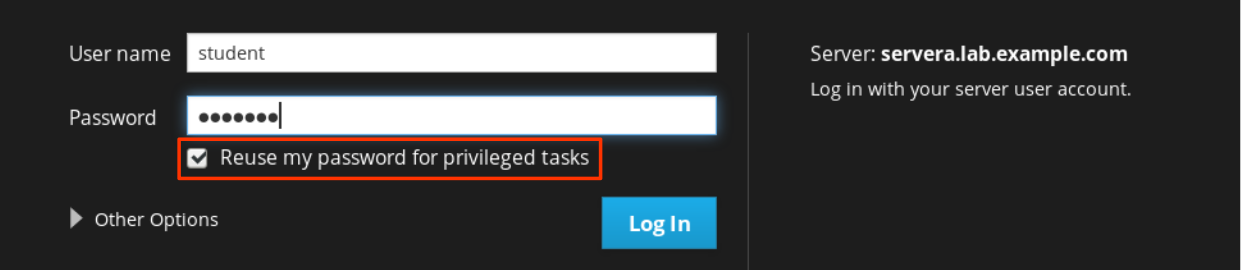
To manage system performance profiles with Web Console, log in with privileged access. Click the Reuse my password for privileged tasks option. This permits the user to execute commands, with sudo privileges, that modify system performance profiles.
 |
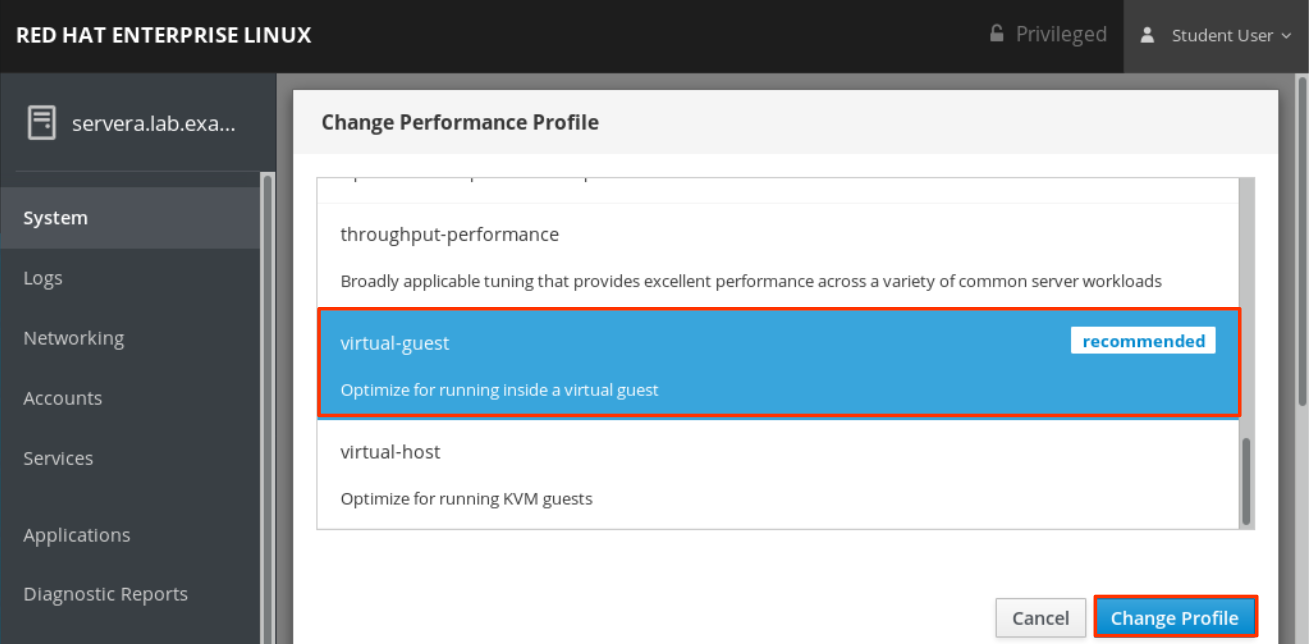
As a privileged user, click the Systems menu option in the left navigation bar. The current active profile is displayed in the field. To select a different profile, click the active profile link.
 |
In the Change Performance Profile user interface, scroll through the profile list to select one that best suits the system purpose.
 |
To verify changes, return to the main System page and confirm that it displays the active profile in the field.
 |
References
tuned(8), tuned.conf(5), tuned-main.conf(5) and, tuned-adm(1) man pages